FlixFox doesn't have a separate Windows program, but you can still run the full Android app on your laptop or desktop. The free MuMu Player emulator lets you install FlixFox v2.1.3 (34.5 MB) on Windows 11 or 10 and watch on a bigger screen, free to watch with ads, or ad-free with Premium. The whole setup takes around 10 to 15 minutes, and most of that is the emulator downloading.
Download FlixFox APK for PC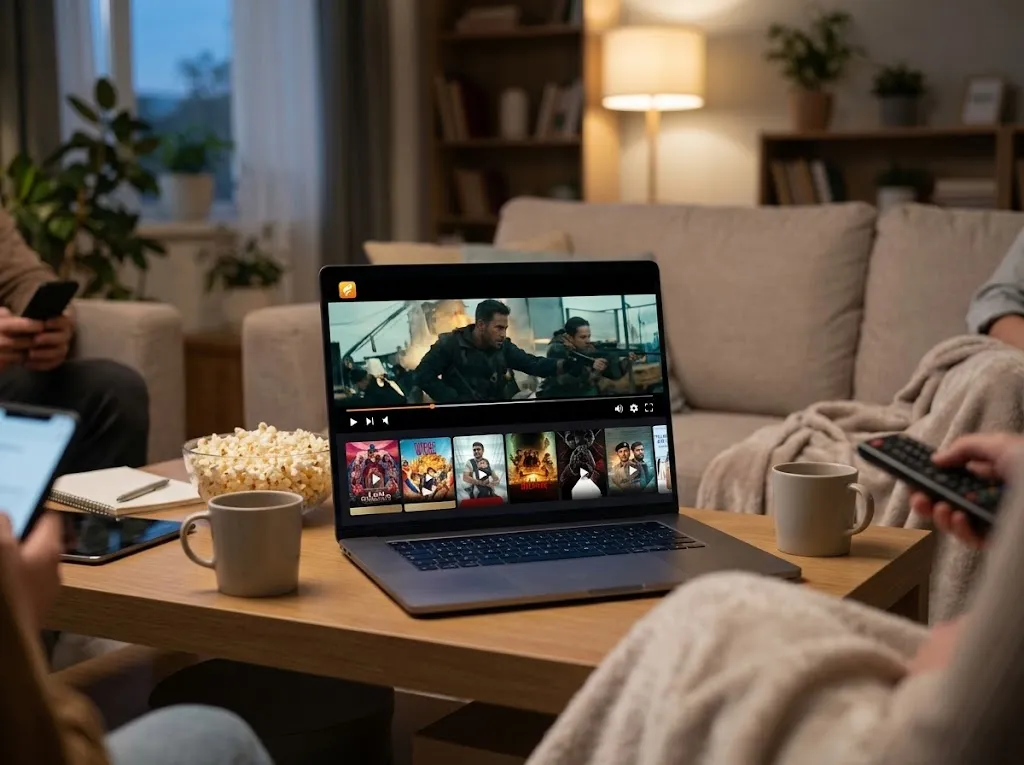
FlixFox for PC is the same Android app you use on your phone, running inside an Android emulator on Windows. The emulator creates a virtual Android device in a window on your computer. You install FlixFox inside it, just like on a phone, and get the full library: movies, web series, anime, live TV channels and cricket, in English, Hindi, Tamil and Telugu.
Why bother when you already have it on your phone? A laptop screen makes a real difference for long movies and live matches. Your phone stays free for calls and messages, and you can keep watching while charging your phone across the room.
Everything you know from the mobile app carries over: no login screen to start, offline downloads, your language preferences and, if you have it, your Premium account. Setting up FlixFox on your phone instead? Use the phone install guide.
| App Name | FlixFox for PC |
| Version | v2.1.3 |
| Last Updated | September 30, 2026 |
| APK Size | 34.5 MB |
| Windows | Windows 11 and Windows 10 |
| Method | Android emulator (MuMu Player) |
| Max Quality | Full HD 1080p (Premium) |
| Languages | English, Hindi, Tamil, Telugu |
| Sign-up | Not required to start watching |
| Ads | Free plan with ads / None with Premium |
| Price | Free |
Everything from the phone app, stretched across your laptop or monitor.
Choose up to 1080p with Premium and enjoy sharper detail on a large display.
Scroll rows with your mouse and type searches on a real keyboard.
Save episodes inside the emulator and watch them later without internet.
Keep a live match running in a window while you work in another.
Watch free with ads, or go ad-free with your Premium account.
MuMu Player lists these minimum requirements for Windows. Taking two minutes to check them first saves most of the problems people run into later.
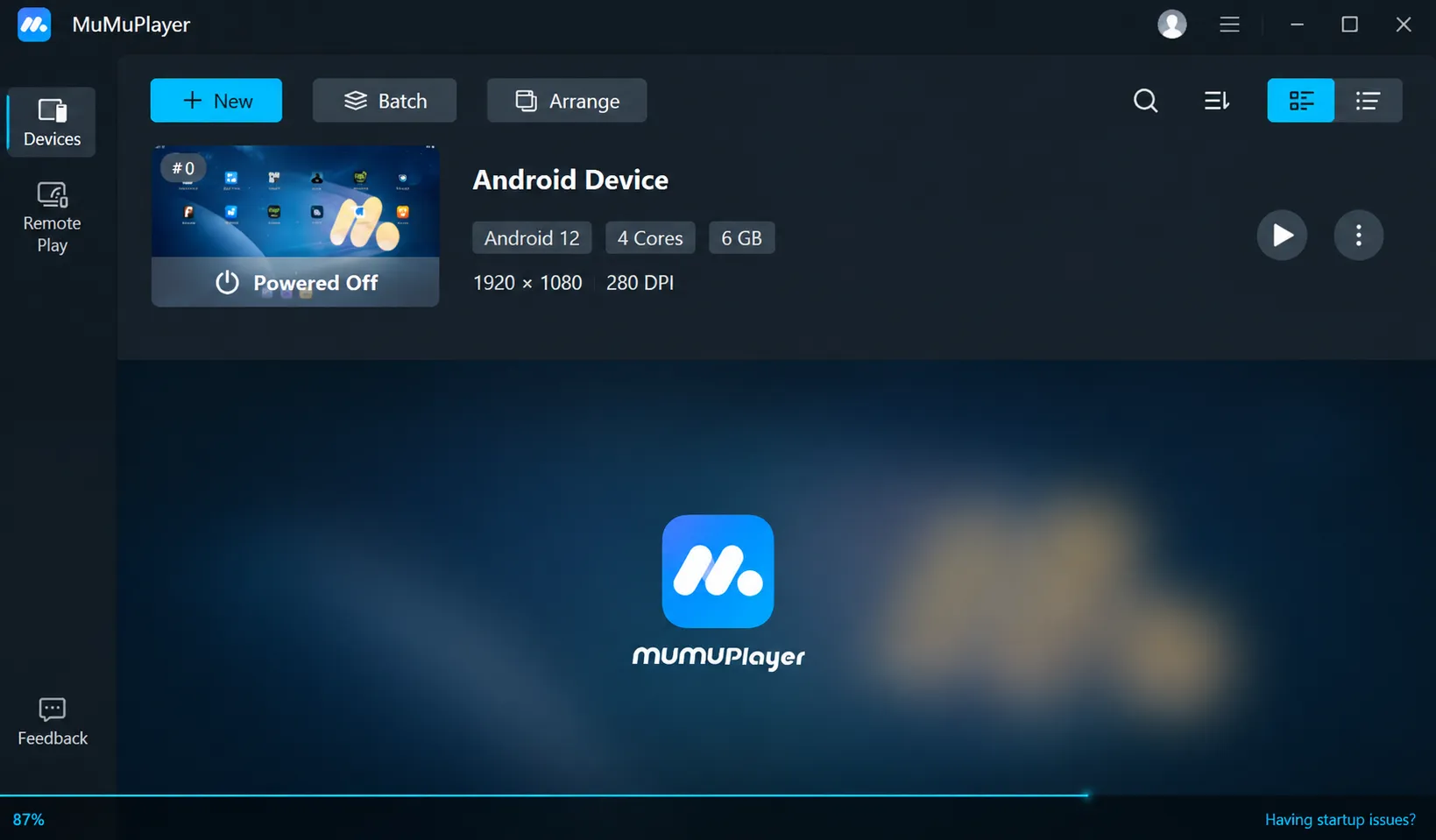
Go to the official MuMu Player website (mumuplayer.com) and download the Windows installer. Run the file, click Install, and wait. The first launch can take a few minutes while MuMu Player sets up its Android system.
You can do this in two ways:
MuMu Player installs the app on its own. It usually takes under a minute. When it's done, the FlixFox icon appears on the MuMu desktop.
Click the FlixFox icon. Pick your preferred content languages, switch the interface to Hindi if you like, and start watching. For a cinema feel, switch MuMu Player to full screen.
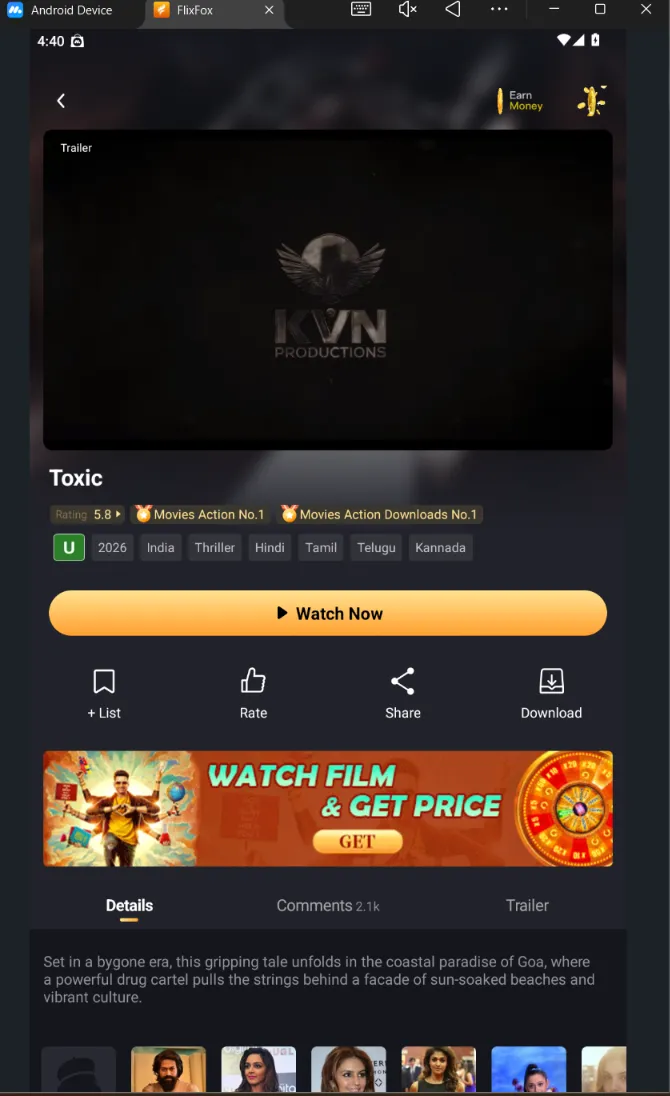
If you already have a different Android emulator installed, you don't need to switch. Most emulators install APK files the same way: drag the FlixFox APK onto the emulator window, wait for the install to finish, then open FlixFox from the emulator's home screen. The tips and fixes below apply to most emulators too, although menu names will differ.
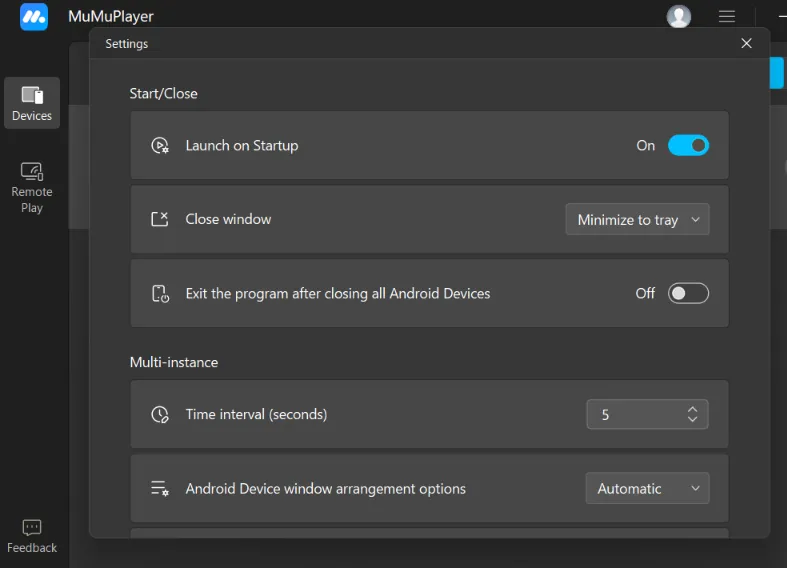
A few emulator settings make a big difference, especially in Full HD.
This is almost always because virtualization is turned off. Check Task Manager > Performance > CPU. If virtualization is disabled, turn it on in your BIOS as described above. Also close other heavy programs and give the emulator more memory.
Download the APK again, since a broken download is the most common cause. Make sure MuMu Player itself is up to date, then try the Install APK option instead of drag and drop.
Update your graphics driver, switch MuMu Player to your dedicated graphics card if you have one, and restart the emulator. If the problem continues, try a different graphics mode in MuMu Player's settings.
Right-click the speaker icon in the Windows taskbar, open the Volume Mixer, and check that MuMu Player isn't muted. Then check the volume inside the emulator and inside the FlixFox player.
Raise MuMu Player's memory allocation, clear FlixFox's cache from the emulator's Android settings, and make sure you are running FlixFox v2.1.3.
Not yet. FlixFox is an Android app, so on a PC it runs inside an Android emulator such as MuMu Player.
Yes. FlixFox is free to watch with ads, and MuMu Player is free to download and use. Premium removes ads.
Yes. Windows 11 and Windows 10 both work well with the current version of MuMu Player.
This guide uses MuMu Player because it is free and installs APK files with a simple drag and drop. Other Android emulators work in a similar way if you already have one installed.
No. You install FlixFox from the APK file, so you don't need the Play Store, and FlixFox itself doesn't need an account to start watching.
Yes. Downloads are saved inside the emulator's storage, and you can play them later without internet.
This guide covers Windows. MuMu also offers a Mac edition, so check the official MuMu website for macOS support on your computer.
Accept the in-app update prompt, or download the latest APK from the official FlixFox website and drag it into MuMu Player to install it over the old version.